I already have a spend tracker and a service dashboard running on the home server. The information is there. Getting at it still means opening the right page, finding the right section, and sometimes SSHing in because a green dot does not tell you very much.
I wanted to ask a normal question and have the answer come from the actual server.
“Is Immich running?”
“What did I spend on food this month?”
“How much is left after the bills?”
That became Home MCP. A small Python service that gives an AI client a specific set of things it can ask the server to do. In this version, all of those things are reads.
The interesting work was in the boundaries: which files it reads, what it returns when a check fails, how old the financial data is, and how to keep it running after I close the terminal. Those are the bits that make this useful once the initial “oh, that actually works” moment wears off.
This is the build, with a downloadable starter you can run yourself. The starter covers the two service tools. I also explain how the four Spend Tracker tools fit into my full setup, because they depend on my existing application’s storage and calculations.
What MCP actually does here
MCP stands for Model Context Protocol. The useful part for this project is tool discovery and calling: a client can ask which tools exist, inspect their inputs, then call one and receive a structured result. The MCP tool specification describes that exchange.
Think of a normal Python function:
def home_status():
    return {"status": "ok", "read_only": True}
MCP makes that function discoverable to a compatible client. The client sees a name, a description, an input schema and a result. ChatGPT can use that description to choose the function when I ask about the connection.
The model is still responsible for understanding the question and explaining the result. My code is responsible for checking the server and doing the calculations.
There is no model running inside this MCP service. It does not call the OpenAI API to generate answers, and it does not trigger a bank sync. The optional tunnel does use a runtime API key to authenticate its connection to OpenAI.
The six tools I ended up with
| Tool | What it actually reads |
|---|---|
home_status | Whether this MCP process responds |
home_get_service_status | Configured local systemd states and TCP listeners |
spend_get_account_balances | Saved account balances and their source dates |
spend_get_safe_to_spend | The tracker’s existing allowance calculation, including reserves and warnings |
spend_get_spending_by_category | Saved spending totals for an inclusive date range |
spend_get_transactions | A bounded list of saved transactions, with optional category and merchant filters |
No restart button. No arbitrary shell command. No “run whatever this string says” tool hiding underneath a friendly name.
That keeps the first version small enough to understand.
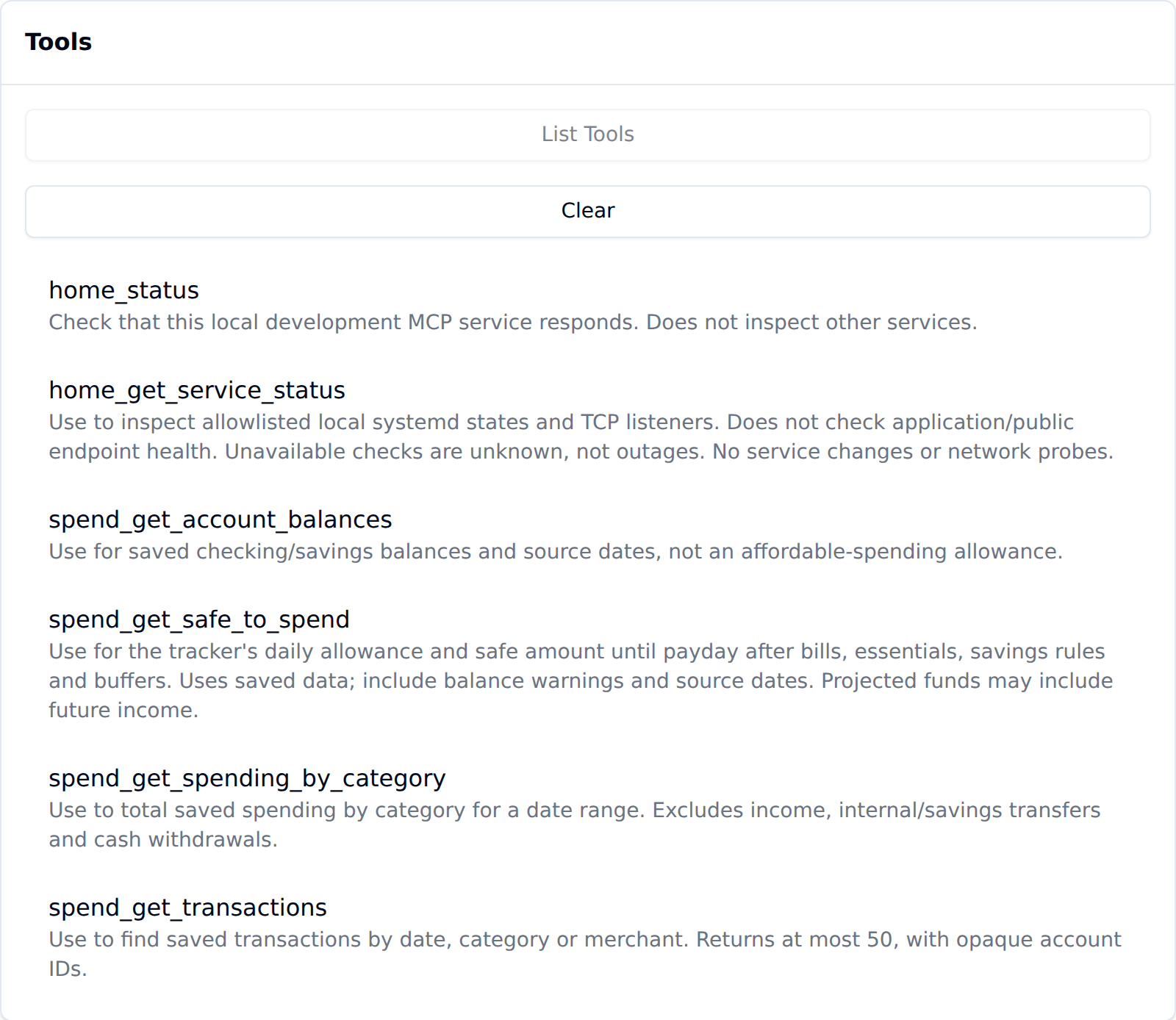
Figure 1. The full Home MCP tool inventory in MCP Inspector. The downloadable starter below exposes the two home_ tools. Screenshot and software credits are at the bottom.
Two connections to the same code
There are two separate processes in my running setup:
Local testing
  Python client / MCP Inspector
      -> http://127.0.0.1:8001/mcp
      -> Home MCP HTTP process
      -> local adapters

ChatGPT
  ChatGPT -> OpenAI tunnel endpoint
      <-> outbound connection from tunnel-client at home
      -> a separate Home MCP process over stdio
      -> the same local adapters
Streamable HTTP is handy for testing with a terminal client. Stdio means the client starts the server as a subprocess and exchanges protocol messages through its standard input and output.
The tunnel starts its own stdio process. It does not depend on my HTTP service being up.
Both routes use the same tool implementation, but they have separate lifecycles. Restarting the HTTP service does not reload the tunnel’s child process. That is an easy detail to miss when a change appears in one place and refuses to appear in the other.
The HTTP listener stays on 127.0.0.1. It has no per-client authentication, so local users and processes on that host are inside the trust boundary. I do not publish it through the reverse proxy.
The Secure MCP Tunnel gives ChatGPT an outbound connection into this arrangement without opening an inbound internet port. Tool definitions and requested results still travel to OpenAI. “Private server” does not mean the answer stays on the home machine.
1. Get the starter running
The example uses Linux with systemd, Python 3.12, and ss from iproute2. On Ubuntu:
sudo apt update
sudo apt install python3 python3-venv iproute2 curl

mkdir -p "$HOME/home-mcp-guide"
cd "$HOME/home-mcp-guide"
Download the complete starter archive into that directory, or fetch it from the terminal:
curl -fLO https://blog.analogarray.org/downloads/home-mcp-starter.tar.gz
tar -xzf home-mcp-starter.tar.gz

python3 -m venv .venv
.venv/bin/python -m pip install -r requirements.txt
The archive contains:
home-mcp-guide/
  server.py          tool definitions and transports
  home_adapter.py    bounded, passive service checks
  client.py          a small terminal MCP client
  services.json      the services you choose to expose
  requirements.txt   pinned direct dependencies
  README.txt         quick-start notes
  .gitignore         keeps runtime files and credentials out of Git
For this guide, requirements.txt is:
mcp==1.30.0
httpx==0.28.1
Those versions match the SDK and HTTP client used by this build. This is the SDK’s v1 FastMCP API, so use its v1 documentation alongside these examples. The current v2 documentation uses a different server API; mixing the two is an unnecessary way to lose an afternoon.
The pins cover the direct dependencies. If you need a fully repeatable environment across machines, lock the transitive dependencies as well.
2. Register a small, honest tool
The complete server.py creates a FastMCP server, binds it to loopback, and registers the two starter tools. This is the central setup, with the transport protections included:
from mcp.server.fastmcp import FastMCP
from mcp.server.transport_security import TransportSecuritySettings
from mcp.types import ToolAnnotations

port = 8001

server = FastMCP(
    "Home MCP starter",
    host="127.0.0.1",
    port=port,
    stateless_http=True,
    json_response=True,
    max_request_body_size=64 * 1024,
    transport_security=TransportSecuritySettings(
        enable_dns_rebinding_protection=True,
        allowed_hosts=[f"127.0.0.1:{port}", f"localhost:{port}"],
        allowed_origins=[
            "http://127.0.0.1:6274",
            "http://localhost:6274",
        ],
    ),
)

read_only = ToolAnnotations(
    readOnlyHint=True,
    destructiveHint=False,
    openWorldHint=False,
)

@server.tool(annotations=read_only)
def home_status() -> dict:
    """Check this MCP process. Does not inspect other services."""
    return {"status": "ok", "read_only": True}
The decorators register the functions. Type hints and descriptions give the client something useful to work with.
The annotation tells a client that this is intended to be a read-only tool. It does not stop Python from writing a file. The implementation still has to keep that promise.
The Host and Origin allowlists are another layer. They limit which HTTP hostnames and browser origins the server accepts. They are not a login system.
Start the downloaded server:
.venv/bin/python server.py
In a second terminal on the same machine:
cd "$HOME/home-mcp-guide"
.venv/bin/python client.py list
.venv/bin/python client.py home_status
You should see two tools in the starter’s list, then a result containing "status": "ok" and "read_only": true.
The client performs MCP initialisation before discovering or calling tools. Opening /mcp in a normal browser is not the same test. It is a protocol endpoint, so do not expect a dashboard to appear.
Also, 127.0.0.1 means the machine running the command. If the server is at home and the terminal is on your laptop, SSH into the home server first. If port 8001 already belongs to another process, pass --port 8002 to both server.py and client.py.
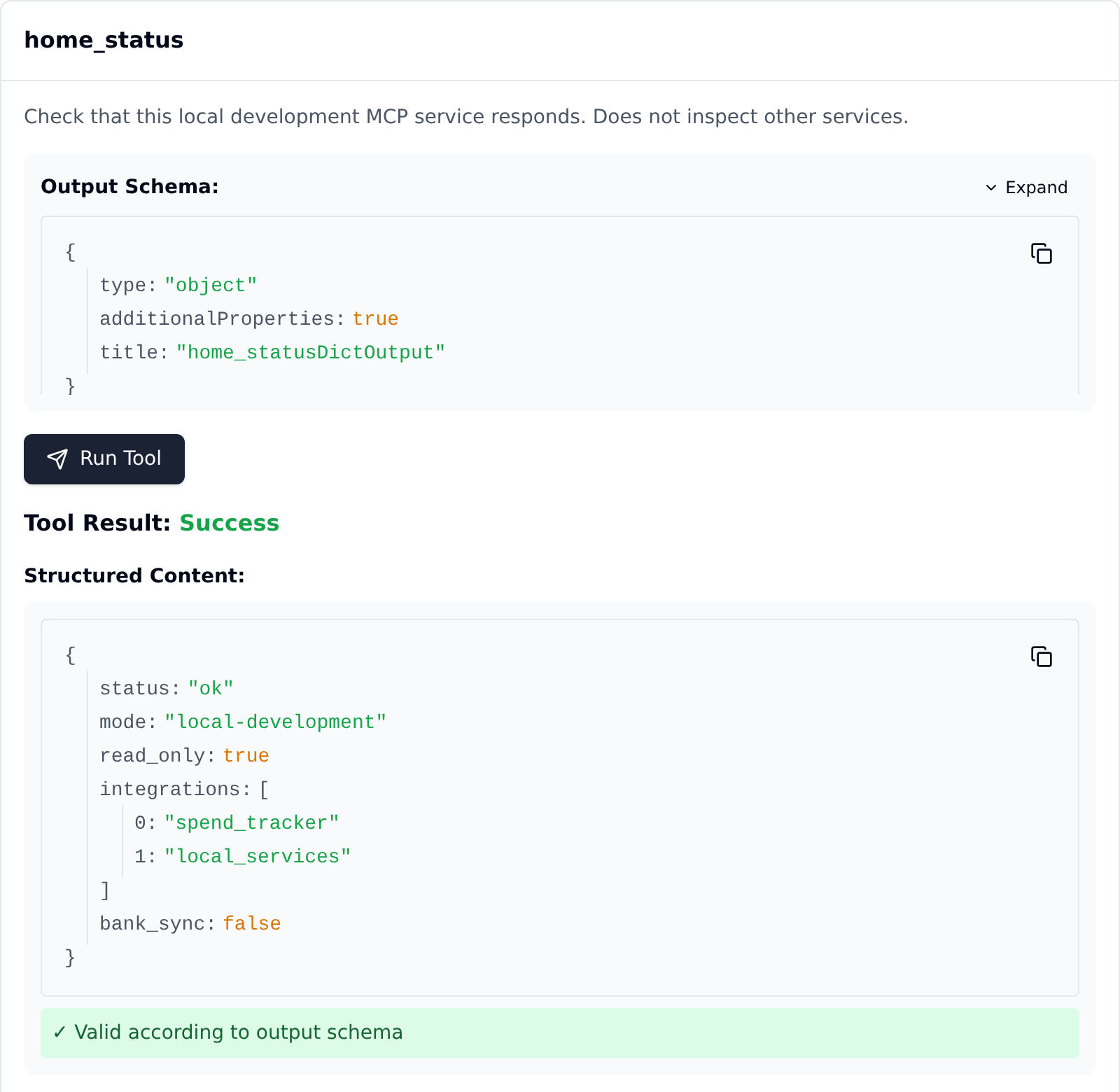
Figure 2. A real home_status result from the full build. It confirms that MCP responds; it does not claim that every home service is healthy.
3. Give it a service allowlist
My full build reads the same service configuration used by the dashboard. The starter has its own services.json, beginning with SSH:
{
  "services": [
    {
      "id": "ssh",
      "name": "SSH",
      "systemd_unit": "ssh.service",
      "systemd_scope": "system",
      "ports": [22],
      "primary_port": 22,
      "expected_active": true
    }
  ]
}
Check those values against your machine. Some distributions use sshd.service. SSH can also use a different port or socket activation. The configuration should describe what you actually run.
Then call:
.venv/bin/python client.py home_get_service_status '{"service_id":"ssh"}'
Omit the JSON argument to check every configured service.
The caller supplies a service ID. The operator chooses the unit name, scope and ports in the configuration file. A tool call cannot replace those with a path, URL, arbitrary unit or shell command.
The complete adapter validates the configuration and uses fixed executables. Its systemd check asks for only these properties:
systemctl show ssh.service --no-pager \
  --property=LoadState,ActiveState,SubState,Result
For a user service, it adds --user. The listener check is:
ss -H -ltn
These are passive local checks. The adapter does not send HTTP requests to the applications, and it does not scan the network. Each subprocess gets a two-second timeout, output is bounded, and Python passes an argument list without shell=True.
I also leave process command lines and service environment variables out of the response. Those are places credentials can end up. They add very little to the question “is this service running?”
What the status actually means
This part deserves more attention than the green dot.
| Result | Meaning in this implementation |
|---|---|
running | The configured unit is active, and required listener checks pass if configured |
listening | Configured ports have listeners, with no systemd unit check |
degraded | The unit and listener evidence disagree |
not_running | The configured checks indicate an expected service is stopped or absent |
stopped | A service configured as optional is stopped |
unknown | A required check could not be completed, or the unit is transitioning |
not_monitored | That service has no local unit or port checks configured |
A listener does not prove which process owns the port. An active unit does not prove that the application is serving useful responses. Neither proves that its public URL works.
If systemd access is denied, “unknown” is the honest answer. Turning that into “your server is down” would be making up evidence.
4. Add the application adapter
This is where my full build goes beyond the downloadable starter.
Spend Tracker already knows how to categorise transactions, exclude internal transfers, reserve money for bills and work out the amount available until payday. Reimplementing all of that inside MCP would give me two calculators to keep in sync.
I reused the existing calculator.
The flow is:
validated tool arguments
    -> read the configured user's saved files
    -> decrypt in memory when needed
    -> call the existing FinancialToolService
    -> add source dates and freshness information
    -> return structured data
The selected user comes from the process configuration. It is not a tool parameter. A client cannot ask for a different person’s financial records by changing an argument.
My adapter supports the plaintext and encryption formats already used by the tracker, including the older direct Fernet format and the current envelope format. It uses the existing keys; it does not create new ones or copy them into MCP results.
There was a less obvious trap here: some of the application’s storage read helpers can migrate old files. Calling a function with “read” in its name does not automatically mean nothing changes on disk.
The MCP adapter reads the saved bytes directly and decrypts in memory. For safe-to-spend, it calls the tracker’s build_payday_snapshot entry point with in-memory data. That lets it reuse the website’s rules without using storage helpers that rewrite records.
If you are adapting your own app, this is the seam to look for: a calculation or query layer you can call without accidentally triggering a sync, migration or write.
Keep tool inputs boring
This is an excerpt from the full transaction tool:
from typing import Annotated
from pydantic import Field

# Inside the full server's tool-registration function:
@server.tool(annotations=annotations)
def spend_get_transactions(
    start_date: Annotated[
        str, Field(pattern=r"^\d{4}-\d{2}-\d{2}$")
    ],
    end_date: Annotated[
        str, Field(pattern=r"^\d{4}-\d{2}-\d{2}$")
    ],
    category: Annotated[str | None, Field(max_length=80)] = None,
    merchant: Annotated[str | None, Field(max_length=80)] = None,
    limit: Annotated[int, Field(ge=1, le=50)] = 20,
) -> dict:
    """Find saved transactions by date, category or merchant."""
    return call("get_transactions", {
        "start_date": start_date,
        "end_date": end_date,
        "category": category,
        "merchant": merchant,
        "limit": limit,
        "account_ids": None,
    })
Here, call is the full server’s wrapper around SpendAdapter; this excerpt is not a standalone financial integration. The calculator also validates real calendar dates and range limits. A regular expression can recognise the shape of a date without noticing that February does not have 31 days.
Transactions are capped at 50 per call and a maximum 366-day range. Category summaries allow up to 731 days. Date ranges are inclusive New Zealand local dates.
On my full installation, a call looks like:
.venv/bin/python client.py spend_get_transactions \
  '{"start_date":"2026-10-01","end_date":"2026-10-16","limit":5}'
Account identifiers are opaque in the returned results. Descriptions and amounts are still financial data, so I treat the response itself as private.
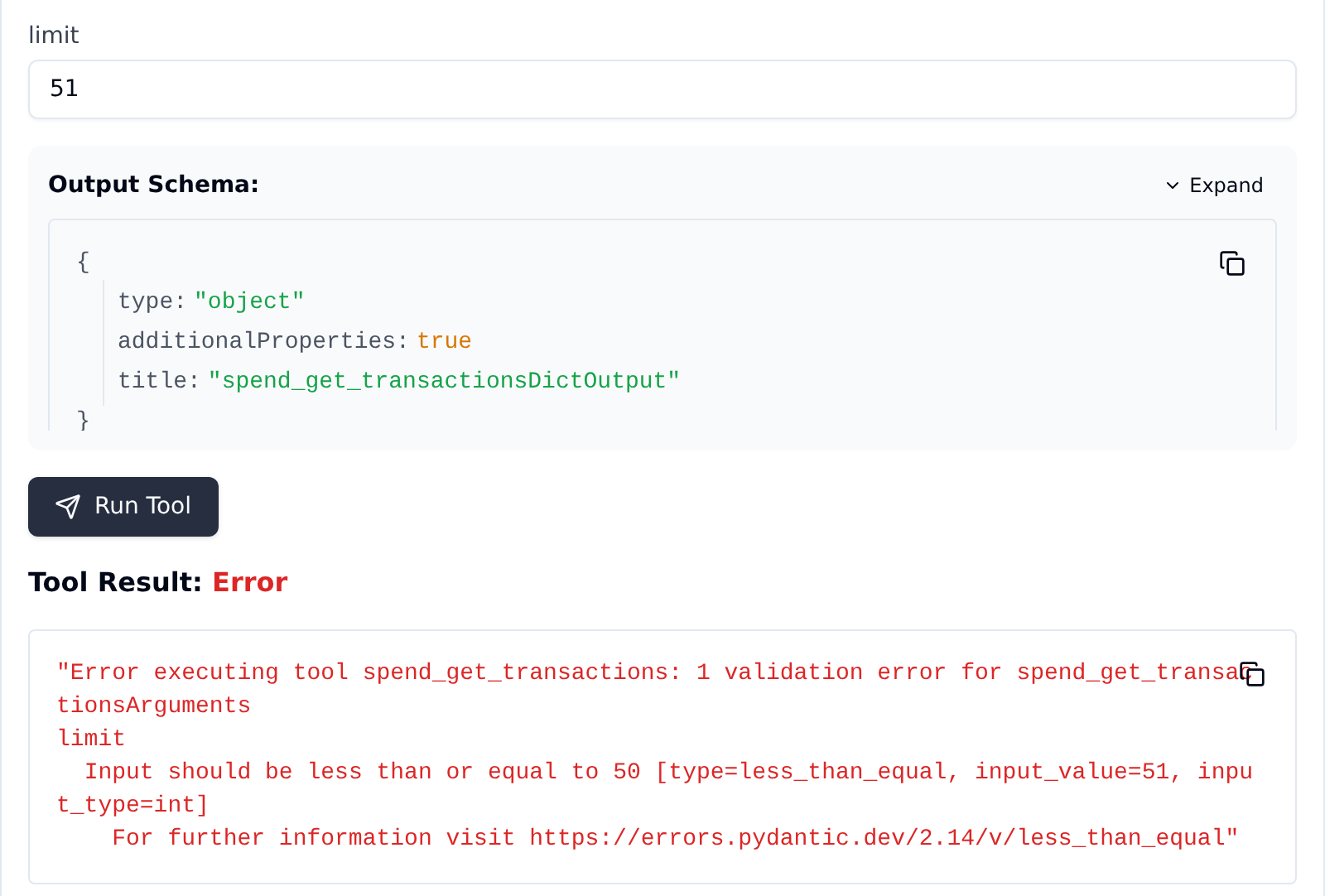
Figure 3. Testing the boundary with limit: 51. The invalid request is rejected before the finance adapter runs. No transaction records are shown.
Read time is not bank refresh time
The adapter attaches this metadata after the calculation:
result["data_status"] = {
    "read_at": now.isoformat(),
    "timezone": "Pacific/Auckland",
    "latest_transaction_date": max(
        (str(row.get("date") or "") for row in rows),
        default=None,
    ),
    "bank_last_sync_at": sync.get("last_sync_at") or None,
    "bank_sync_triggered": False,
    "note": (
        "Saved Spend Tracker data. Read time is not bank refresh time. "
        "Balances are not safe-to-spend allowances."
    ),
}
If I read yesterday’s balance at 10am today, it is still yesterday’s balance. A fresh tool call does not make the source fresh.
The existing calculator also used the source label akahu_live for saved bank records. The MCP adapter changes that to akahu_stored, because it did not contact the bank.
Safe-to-spend needs a separate tool because a balance is only one input. Bills, essentials, savings rules and buffers also matter. Projected income stays separate from money available now, and stale-balance warnings survive the trip through MCP.
Missing transactions or unreadable preferences produce an error. They do not quietly turn into an empty account or zero reserves. A confident answer based on missing data is worse than an error I can investigate.
5. Test before adding ChatGPT
The terminal client lets me separate “the tool is wrong” from “the model picked the wrong tool.”
For the starter, check the happy path and a rejected service ID:
.venv/bin/python client.py list
.venv/bin/python client.py home_status
.venv/bin/python client.py home_get_service_status '{"service_id":"ssh"}'
.venv/bin/python client.py home_get_service_status '{"service_id":"not-configured"}'
The last command should report an unknown service ID and exit unsuccessfully.
For a visual view, use MCP Inspector, with the Node.js version required by the release you install:
npx @modelcontextprotocol/inspector@latest
Follow its local launch instructions, connect using Streamable HTTP to http://127.0.0.1:8001/mcp, list tools, and run home_status. If you run Inspector on a laptop, forward the MCP port through SSH or run the browser and Inspector on the server; localhost still means the local machine. Keep Inspector’s own authentication enabled.
The screenshots in this post use Inspector 0.15.0, so newer releases will look different. They are real captures of the full server, with the surrounding connection controls cropped out.
The project also has tests with synthetic encrypted records. They check unchanged source files, user isolation, failed decryption, freshness labels, validation and service-state handling. The service adapter tests include a particularly useful case: ss can report a permission problem on stderr even when its exit code is zero. I treat that as an unavailable check.
Before publishing this guide, the 17 adapter and service tests passed. I also checked the MCP exchange against a running server; a unit test of a Python function alone does not prove that discovery and transport work.
6. Connect the private tunnel
This is optional. The local tools work without ChatGPT.
My installed tunnel client is v0.0.16. The flags below match that build. Get the binary for your OS and architecture from the official download linked in OpenAI’s tunnel guide, verify its published checksum, and place it at:
~/home-mcp-guide/.tools/tunnel-client
Make it executable and check its help:
chmod 700 .tools/tunnel-client
.tools/tunnel-client help quickstart
In Platform tunnel settings, create a tunnel and associate it with the ChatGPT workspace you intend to use. Creating or editing a tunnel requires Tunnels Read + Manage; running it requires Tunnels Read + Use. Workspace permission to add a custom MCP connection is a separate requirement. These requirements are described in the official tunnel guide.
For the runtime credential, use a dedicated runtime API key with the required tunnel access. Do not put the key in a command you are about to paste into a blog post.
This local prompt stores it in an owner-only file:
python3 - <<'PY'
import getpass
import os
from pathlib import Path

os.umask(0o077)
directory = Path(".tunnel")
if directory.is_symlink():
    raise SystemExit("Refusing a symlink at the credential directory.")
directory.mkdir(mode=0o700, exist_ok=True)
directory.chmod(0o700)
key = getpass.getpass("Tunnel runtime API key (hidden): ").strip()
if not key or any(c.isspace() for c in key):
    raise SystemExit("Empty or invalid key; nothing saved.")
path = directory / "runtime-api-key"
if path.is_symlink():
    raise SystemExit("Refusing a symlink at the credential path.")
path.write_text(key)
path.chmod(0o600)
PY
From ~/home-mcp-guide, create a profile. Replace YOUR_TUNNEL_ID with the ID from Platform:
.tools/tunnel-client init \
  --sample sample_mcp_stdio_local \
  --profile home-mcp-guide \
  --profile-dir "$PWD/.tunnel" \
  --tunnel-id YOUR_TUNNEL_ID \
  --control-plane-api-key-ref "file:$PWD/.tunnel/runtime-api-key" \
  --health-listen-addr 127.0.0.1:0 \
  --mcp-command "$PWD/.venv/bin/python -B $PWD/server.py --transport stdio"

.tools/tunnel-client doctor \
  --config "$PWD/.tunnel/home-mcp-guide.yaml" --explain

.tools/tunnel-client run \
  --config "$PWD/.tunnel/home-mcp-guide.yaml" \
  --mcp.stdio-send-initialized-notification=true \
  --allow-remote-ui=false \
  --open-web-ui=false \
  --log.http-raw-unsafe=false
The generated profile contains a credential-file reference, not the key itself. The explicit initialised-notification flag is part of my v0.0.16 setup; check the installed client’s help when moving to another release.
Keep that process running while connecting ChatGPT. In the current custom MCP connection flow:
- Open ChatGPT Plugins and choose Add custom MCP server from the plus menu.
- Give it a name, choose Tunnel, and select the matching tunnel.
- Configure the MCP authentication choice. This single-user stdio example has no separate OAuth login; tunnel and workspace permissions still apply.
- Create the plugin, review its discovered tools, and enable it in a conversation.
- Ask: “Use Home MCP to call home_status and tell me what it reports.”
The starter should expose two tools; my full build exposes six. Check that an actual tool invocation occurs. A friendly sentence saying “connected” is not a connection test.
7. Make it survive closing the terminal
Foreground testing gets old fairly quickly. My deployed build uses two systemd user services, with lingering enabled so they keep running after logout and start at boot.
For the starter, create the unit directory:
mkdir -p "$HOME/.config/systemd/user"
Then save this as ~/.config/systemd/user/home-mcp-guide.service:
[Unit]
Description=Home MCP guide local tools

[Service]
Type=simple
WorkingDirectory=%h/home-mcp-guide
ExecStart=%h/home-mcp-guide/.venv/bin/python -B %h/home-mcp-guide/server.py
Environment=PYTHONUNBUFFERED=1
Restart=on-failure
RestartSec=5
NoNewPrivileges=yes
UMask=0077
LimitCORE=0

[Install]
WantedBy=default.target
If the foreground HTTP process is still using port 8001, stop that process with Ctrl+C first.
Then:
systemctl --user daemon-reload
systemctl --user enable --now home-mcp-guide.service
sudo loginctl enable-linger "$USER"

systemctl --user status home-mcp-guide.service
journalctl --user -u home-mcp-guide.service -n 40 --no-pager
Lingering changes the user’s service lifecycle; the loginctl manual explains the boot and logout behaviour.
The tunnel gets a separate unit at ~/.config/systemd/user/home-mcp-guide-tunnel.service:
[Unit]
Description=Home MCP guide private tunnel
ConditionPathExists=%h/home-mcp-guide/.tunnel/runtime-api-key

[Service]
Type=simple
WorkingDirectory=%h/home-mcp-guide
LoadCredential=tunnel-api-key:%h/home-mcp-guide/.tunnel/runtime-api-key
ExecStart=%h/home-mcp-guide/.tools/tunnel-client run \
  --config %h/home-mcp-guide/.tunnel/home-mcp-guide.yaml \
  --control-plane.api-key file:%d/tunnel-api-key \
  --health.listen-addr 127.0.0.1:0 \
  --health.url-file %t/home-mcp-guide-tunnel/health.url \
  --mcp.stdio-send-initialized-notification=true \
  --allow-remote-ui=false \
  --open-web-ui=false \
  --log.http-raw-unsafe=false
RuntimeDirectory=home-mcp-guide-tunnel
RuntimeDirectoryMode=0700
Environment=PYTHONUNBUFFERED=1
Restart=on-failure
RestartSec=15
KillMode=control-group
NoNewPrivileges=yes
UMask=0077
LimitCORE=0

[Install]
WantedBy=default.target
Stop the foreground tunnel before enabling its service:
systemctl --user daemon-reload
systemctl --user enable --now home-mcp-guide-tunnel.service
systemctl --user status home-mcp-guide-tunnel.service
LoadCredential supplies a private runtime credential file. %d points at the service’s credential directory. The secret value stays out of the unit, command arguments and service environment. The original owner-only file still exists on disk, so this is not encryption at rest. See the systemd credential documentation.
After a restart, run the terminal check and the ChatGPT tool call again. They exercise different processes.
If you are stopping the setup deliberately:
systemctl --user disable --now \
  home-mcp-guide.service home-mcp-guide-tunnel.service
8. Keep a working release
My full deployment runs from a preserved release directory:
home-mcp/
  server.py
  home_adapter.py
  spend_adapter.py
  client.py
  current -> releases/20261017T002322Z
  releases/
    20261017T002322Z/
      server.py
      home_adapter.py
      spend_adapter.py
      client.py
      requirements.txt
      bin/tunnel-client
  .venv/
  .tunnel/
The service units point at current, and the tunnel profile launches the server from there too. Editing the development copy does not change the running release.
That makes updates more deliberate: test a new release, preserve the old one, switch the link, restart both services, and check both connection paths. To roll back the MCP code, switch the link back and restart again.
There is a limit to what that snapshot protects. The virtual environment, Spend Tracker calculator, saved records and dashboard configuration are external dependencies. Keeping an old server.py does not freeze all of those. Dependency or storage-format changes need their own rollback plan.
The starter above runs directly from its project directory to keep the initial setup simple. Add the release layout once you have something worth preserving, and update both the unit paths and the tunnel’s stdio command together.
The problems I would check first
| Symptom | What to check |
|---|---|
/mcp does not look like a web page | Use an MCP client; a browser address bar does not perform the handshake |
| Address already in use | A background service may already own 8001; use a separate development port |
| HTTP works, ChatGPT fails | Check the tunnel process, selected tunnel, workspace association and permissions |
| A tool is missing after an edit | Restart the process that serves that client, then refresh the ChatGPT connection’s tool metadata |
| Edits seem to do nothing | Check whether the service runs the preserved current release |
Local checks report unknown | Inspect systemd/user-bus access and ss errors before declaring an outage |
A service is not_monitored | Add the appropriate local unit or port checks to its configuration |
| Financial answers look current but are old | Compare bank_last_sync_at with read_at |
| Safe-to-spend is unavailable | Check saved preferences, required records and decryption; do not default missing reserves to zero |
| Stdio discovery fails | Keep ordinary logging on stderr; stdout carries the MCP protocol |
| The tunnel works only while SSH is open | Check the user unit and whether lingering is enabled |
For the full build, my client.py check command exercises all six tools and prints pass/fail results rather than financial amounts. The public starter uses the individual calls shown earlier.
Where it landed
Home MCP gives me a small set of useful questions I can ask about systems I already run. The service checks stay bounded. The financial answers use the tracker’s calculations. Old data carries its age with it.
The next step could be write actions, but those would need their own controls and tests. This version cannot restart a service, edit a transaction or move money.
For now, I can ask a question and trace the answer back to a particular tool, a particular calculation and a particular source date.
That is the part I wanted.
References and screenshot credits
The screenshots were captured for this article on 20 October 2026 from MCP Inspector 0.15.0, connected to my running Home MCP HTTP service. Each was cropped to the relevant tool panel and captured at twice its display resolution for readable text. Figure 1’s scroll area was expanded to show all six tools in one capture; tool names, descriptions and results were not altered. The originals and responsive versions use lossless PNG.
- Figure 1 — tool discovery: original screenshot. Capture: Anjelo Fernando / Analog Array. Home MCP tool names and descriptions: this project. Inspector interface: Anthropic, PBC and the Model Context Protocol Inspector contributors.
- Figure 2 —
home_statusresult: original screenshot. Same capture and interface credits. The result is from a real call; no financial records or credentials are included. - Figure 3 — argument validation: original screenshot. Same capture and interface credits. Deliberately invalid example arguments; the finance adapter was not called.
- Inspector licence: the captured 0.15.0 package identifies Anthropic, PBC as its author and uses the MIT licence. The copyright notice and licence supplied with that package are preserved here. No ownership of its interface is claimed here.
- MCP specification: tools.
- MCP Python SDK v1 documentation.
- OpenAI: Secure MCP Tunnel.
- OpenAI: connect and test a custom MCP plugin.
- systemd: execution environment and credentials.
- systemd: user lingering with loginctl.



The downloadable code is adapted from this project’s service-checking implementation. The private Spend Tracker application, saved financial data, API keys and tunnel identifiers are not part of the download.